OLT-STICK-G Configuration and Upgrade Instructions
1 Adaptation Instructions
◆ Laptop, Ethernet cable
Laptop or desktop must be running Windows 10 or 11. Windows 7 will not work.
◆ OLT-STICK-G
Upgrade the corresponding version according to the current model
◆ Devices with optical ports (Switch/Router/Media Converter etc.)
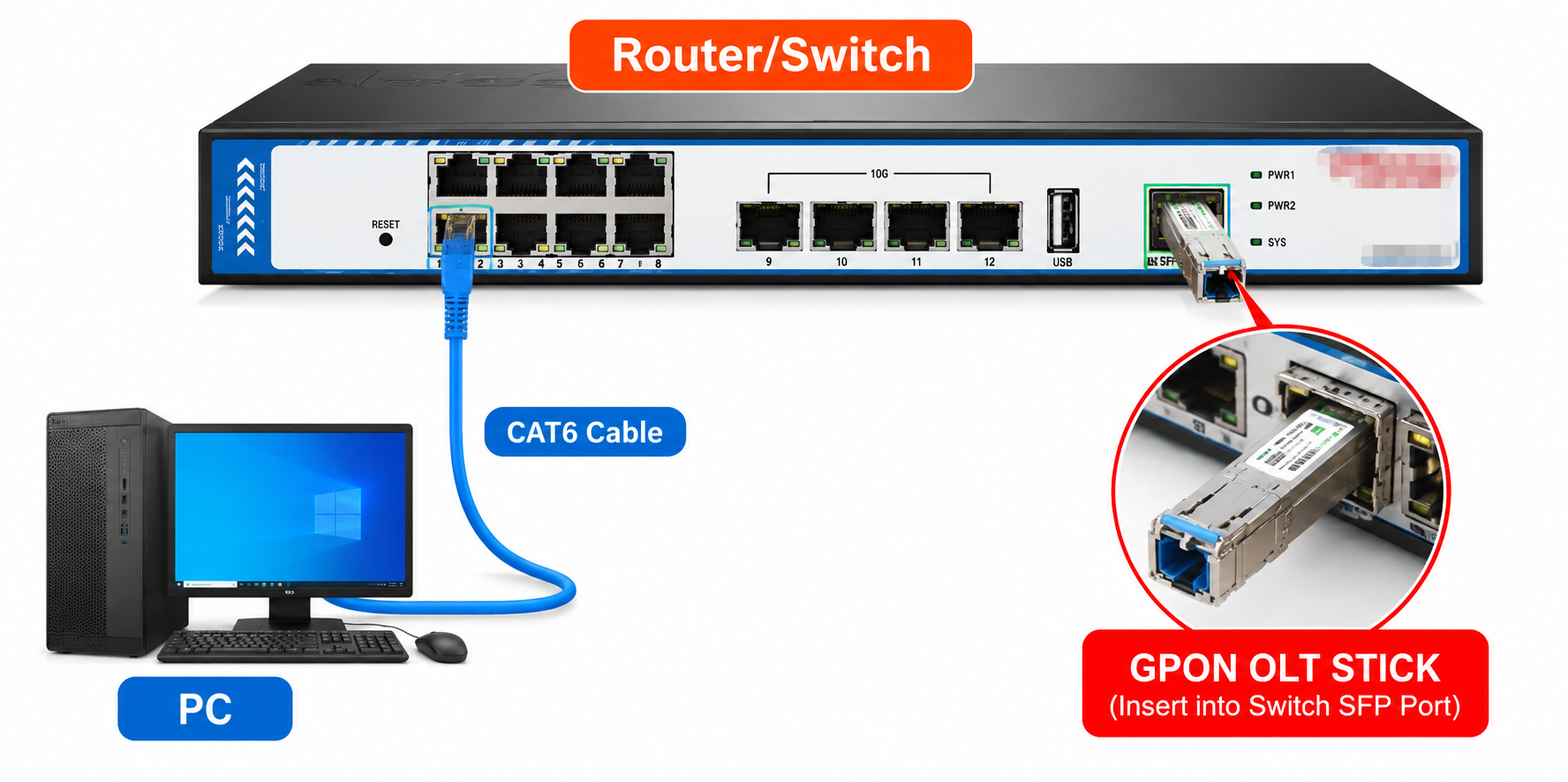
2 Connection topology
Note: To manage the OLT STICK on a computer, connect the switch/router to the same VLAN segment as the OLT STICK and use the tool to search and manage
3 Operation Instructions
1.Install the tool
Install the "WinPcap" software on your computer. If you don't have this tool installed, you may experience an issue where you can't read the "local network card." The software installation package is as follows:
Note: the package need save as file then can use normally, can not use directly by double click in the doc file.
2.Search for devices
Run the Neutral_Tool_V6.6 and connect your laptop to the switch's Ethernet port.
The OLT-STICK-G module and the local network card must be on the same VLAN for interoperability.
◆Select the local network card, link it to the switch's network card, and then click Run in the lower right corner. Keep it in the Running state.
The default page is OLT general info page, in this page you can
1. View ONU, OLT status.
2. Configure the LOID register feature
3. Configure the schedule for optical transmit on/off