D-TECH
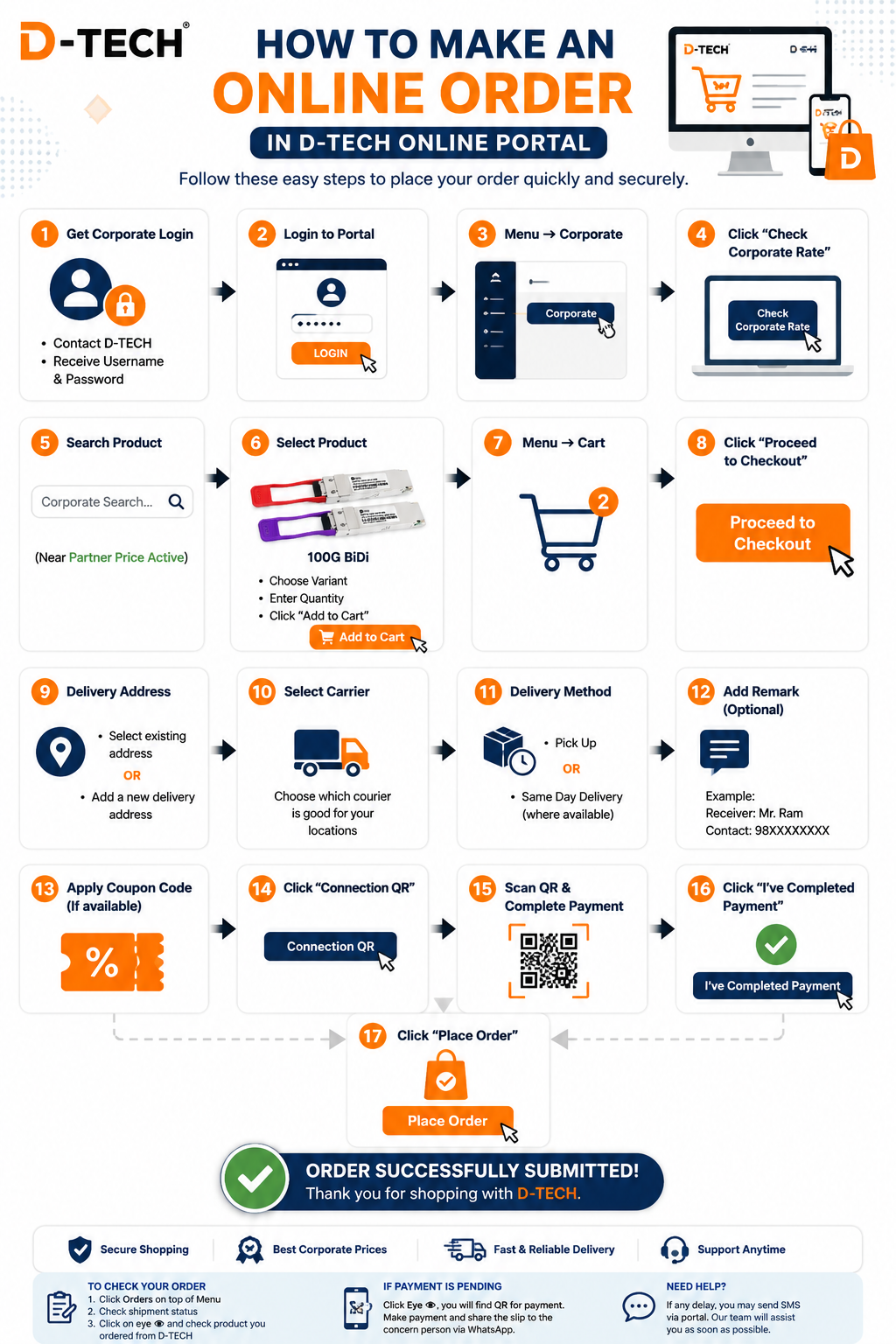
How to Make an Online Order
Follow these simple steps to order from the D-TECH Online Portal.
START YOUR ORDER
1
Get Corporate Login
Contact D-TECH and receive your
Username and Password.
2
Login to Portal
Enter your Username and Password, then click
Login.
3
Open Corporate Menu
Go to Menu → Corporate.
4
Check Corporate Rate
Click “Check Corporate Rate”.
5
Search Product
Use the Corporate Search box located near
“Partner Price Active”.
6
Select Product
Choose the correct Variant
Enter the required Quantity
Click “Add to Cart”
Enter the required Quantity
Click “Add to Cart”
Add to Cart
7
Open Cart
Go to Menu → Cart.
8
Proceed to Checkout
Review your order and click
“Proceed to Checkout”.
9
Delivery Address
Select an existing address
OR
Add a new delivery address.
OR
Add a new delivery address.
10
Select Carrier
Choose the best courier or carrier for your location.
11
Select Delivery Method
Select Pick Up
OR
Same Day Delivery, where available.
OR
Same Day Delivery, where available.
12
Add Remark
This step is optional, but it can help with delivery.
Example
Receiver: Mr. Ram
Contact: 98XXXXXXXX
Receiver: Mr. Ram
Contact: 98XXXXXXXX
13
Apply Coupon Code
Enter your coupon code, if available.
14
Open Payment QR
Click “Connection QR”.
15
Complete Payment
Scan the QR and complete the payment.
16
Confirm Payment
After payment, click
“I’ve Completed Payment”.
17
Place Your Order
Check all details and click
“Place Order”.
Place Order
✓
Order Successfully Submitted!
Thank you for ordering from D-TECH.
VIDEO GUIDE
Still Need Help?
Watch this 1-minute video to see the complete ordering process in the D-TECH Online Portal.